

AC is not available for silicon Mac
Updated 11th April 2026
Important
Unfortunately AC ver 4.0 on a Mac as a “designed for iPad” app is a complete mess and therefore AC will not be available to purchase or upgrade/update for the Mac. Why? Because iOS 26+ is a mess. However, people who buy or have the latest iPad version will still be able to run it on a Mac. In addition the current version “designed for iPad” for a Mac has been withdrawn from sale on the Mac Apple Store.
Testing will continue to see if an improved Xcode or iPadOS 26+ will allow an update/upgrade to be offered in the future. I hope so. I have spent many days trying to get AC for the Mac as an iPad app into a reasonable state. I have failed.
I typed “designed for iPad” for Mac on iOS 26 is a complete mess” into Safari and got this AI summary/output
- UI/UX Disasters: Many “Designed for iPad” apps are plagued by visual bugs, such as improper scaling, broken layouts, and hard-to-read text, as they struggle to adapt to the new translucent Liquid Glass elements.
- Broken Functionality: Users have reported that some app controls, specifically in iPad apps, fail to respond correctly to mouse and trackpad input, rendering them less intuitive or unusable on a Mac.
- “White-on-White” Problems: The new transparent UI elements often fail to provide proper contrast, resulting in elements becoming invisible or difficult to see against white or light backgrounds.
- Developer Adoption Hurdles: The transition required developers to recompile apps using Xcode 26 to adopt the new Liquid Glass, and many apps that have not done so—or are in the process—show inconsistencies, glitches, and low-quality icon rendering.
- Inconsistent Windows: The new windowing system, aimed at making iPad apps look more like native Mac apps, is described as inconsistent, with rounded corners varying between apps.
Background on the Situation:
The macOS 26 release (Tahoe) has been described as a “Windows Vista” moment by some, focusing on high-transparency “Liquid Glass” design at the expense of stability. The issues are so significant that some users are experiencing a “complete disregard” for quality control (QC).
Notes for older versions of AC – designed for iPad
Mac (M1/M2/M3/M4/M5), eg MacBook, Mac Mini, Neo
Note that your Mac Calendar must be set to the Gregorian Calendar. This is set by default for the Anglosphere, Europe, South America. In countries such as Thailand the default calendar setting is Bhuddhist and has to be changed. See AC knowledge base.
If you have purchased AC on an iPad AC is free to download and free to use on a silicon Mac, eg M1. Vice versa if initially bought for Mac.
- If I have the iPad version of AC will I have to pay for the Mac version? No.
- If I have the Mac version of AC will I have to pay for the iPad version? No.
- If I don’t have the iPad version of AC will I have to pay for the Mac version? Yes.
- If I have the iPad/Mac version of AC will I have to pay for the iPhone version? Yes
- If I have the iPhone version of AC will I have to pay for the Mac version? Yes.
If the AC Mac app on the Mac App Store is showing the price and you have previously purchased the iPad version – it should not show the price.
From an AC iPad customer who spoke to Apple Support about this problem:
“If you actually go through the payment process, a dialogue box would actually show up after saying that you have downloaded this app before and that this download would be free.”
This has been confirmed as correct by another AC user.
Apple – Support
Some screenshots
It’s virtually identical to what you see and get on an iPad.
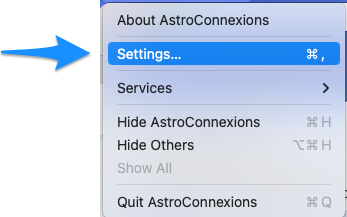
AC Mac Settings menu
AC Ver 4, this setting has been removed by Apple
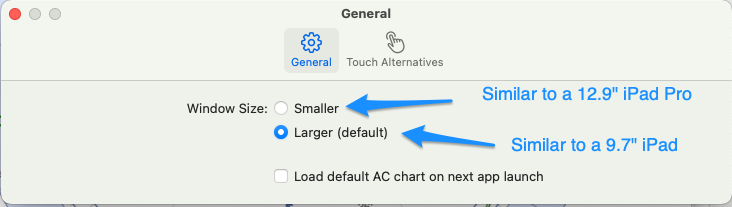
AC Mac settings – Window Size
Example screenshot, AC on a Mac (Larger (default))
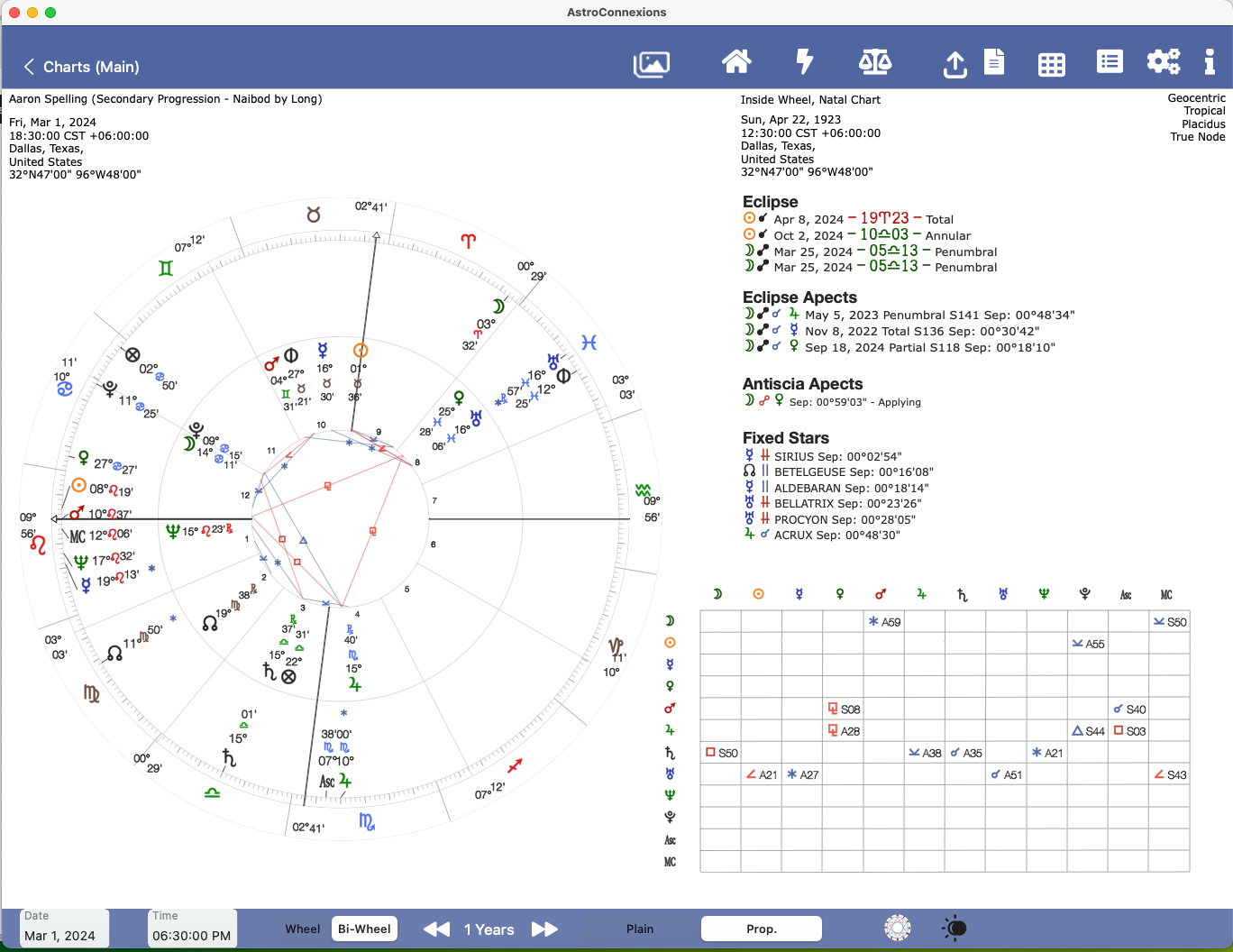
AC View #2 on a Mac
Printing on a MAC:
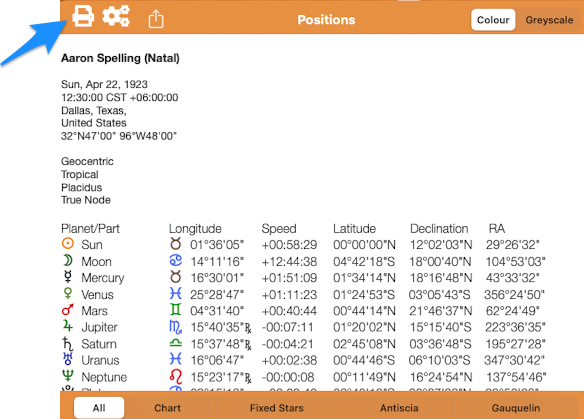
Print icon
Unfortunately printing from a Designed for iPad Mac app doesn’t work as expected ie like an iPad. Waiting on Apple for a fix.
Solution: from AC ver 3.00:
Instead AC saves what would be the print-out to a PDF file eg AC Speculum.pdf which can be printed by any Mac app that can display a pdf file such as the included Mac Preview app.
Settings – A4 or US letter – landscape
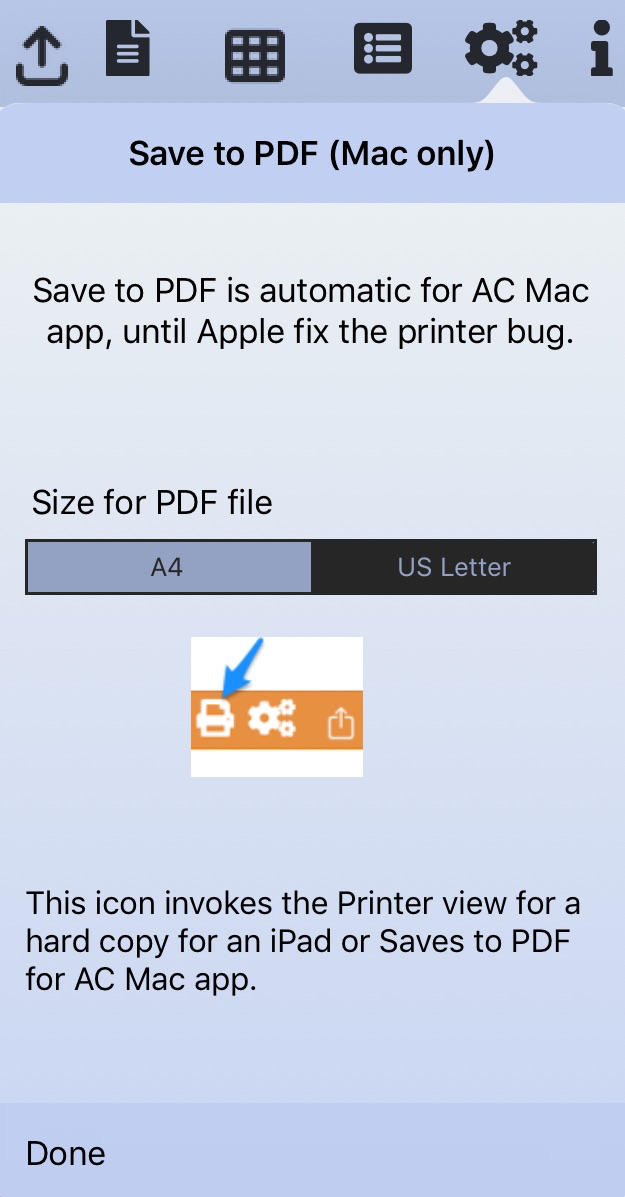
Save to PDF for Mac Settings
The pdf file can be found here:
/Users/yourName/Library/Containers//Data/Documents/AC PDFs
Use Finder… Go to Folder.
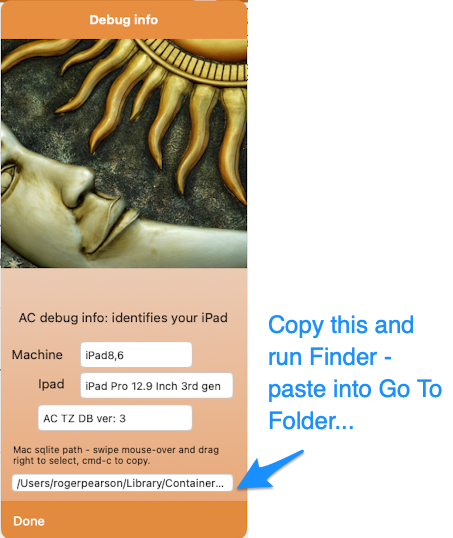
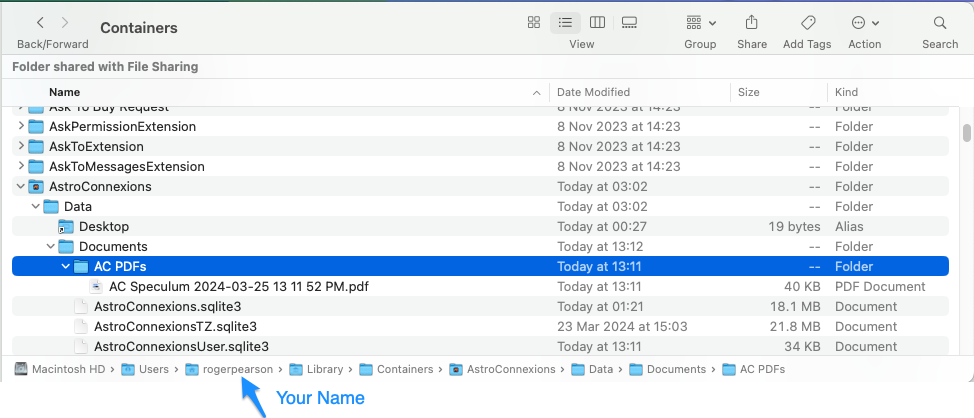
AC path for PDF’s
Alternative Print method – for screenshots of AC views
Add to Photos/Freeform
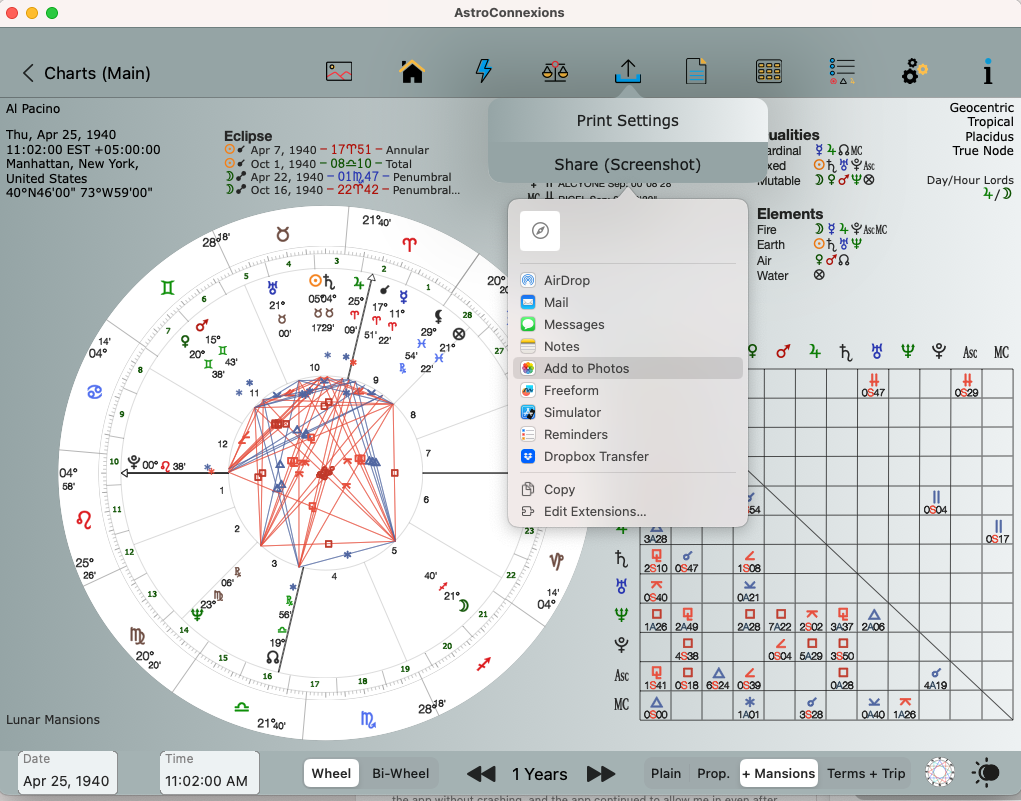
Latest screenshot
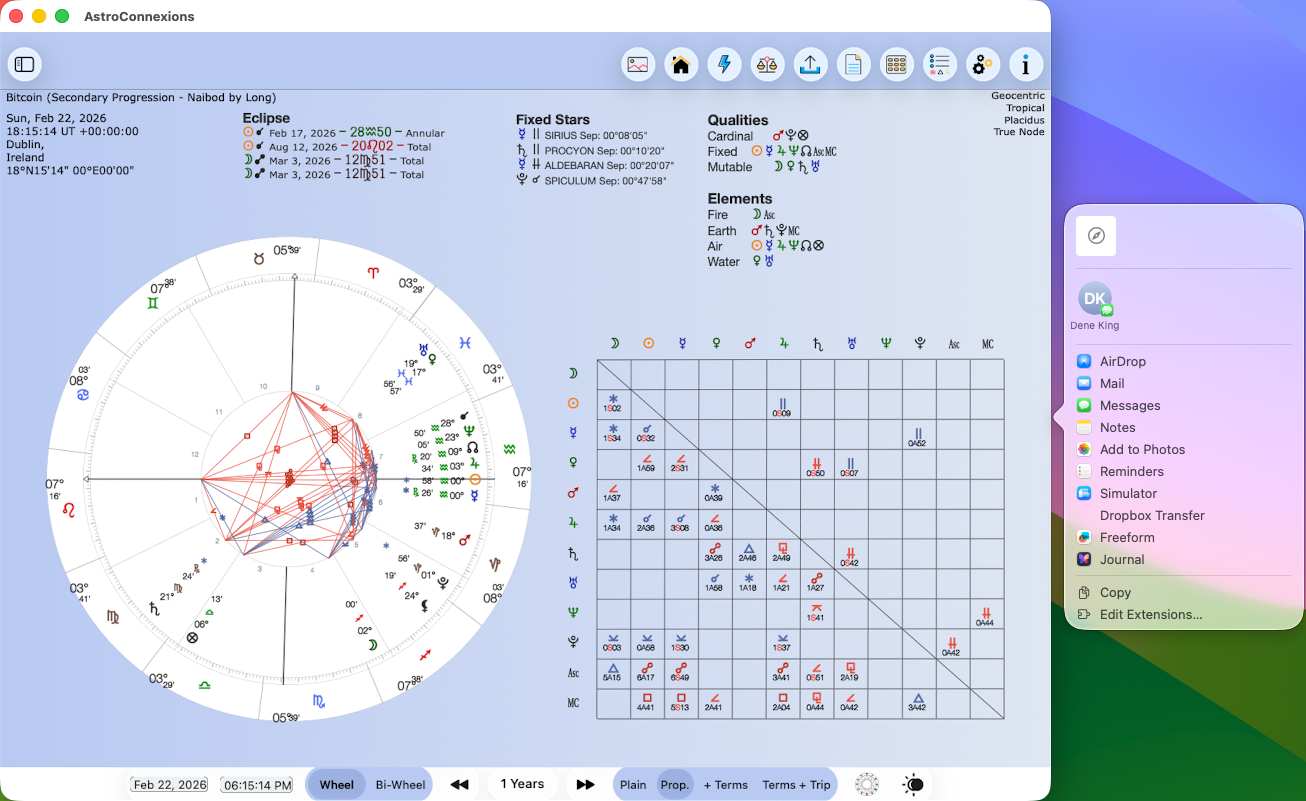
Mac Printing
View in Photos
Note AC screenshot was saved without a coloured background.
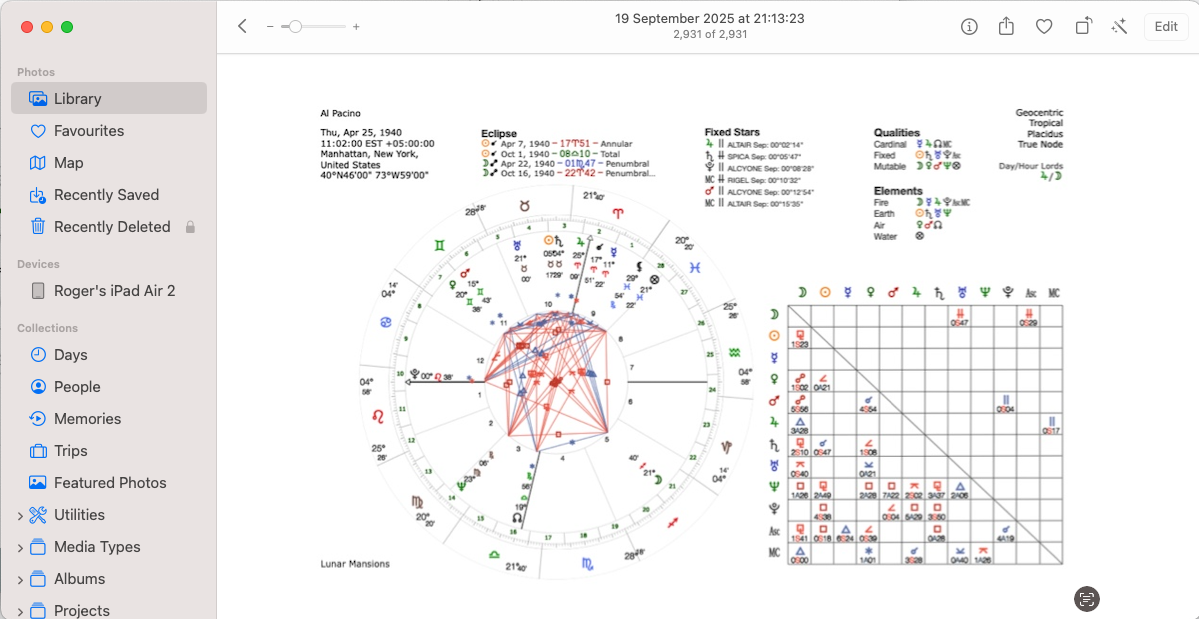
Selected in Photos
Edit in Photo Editor
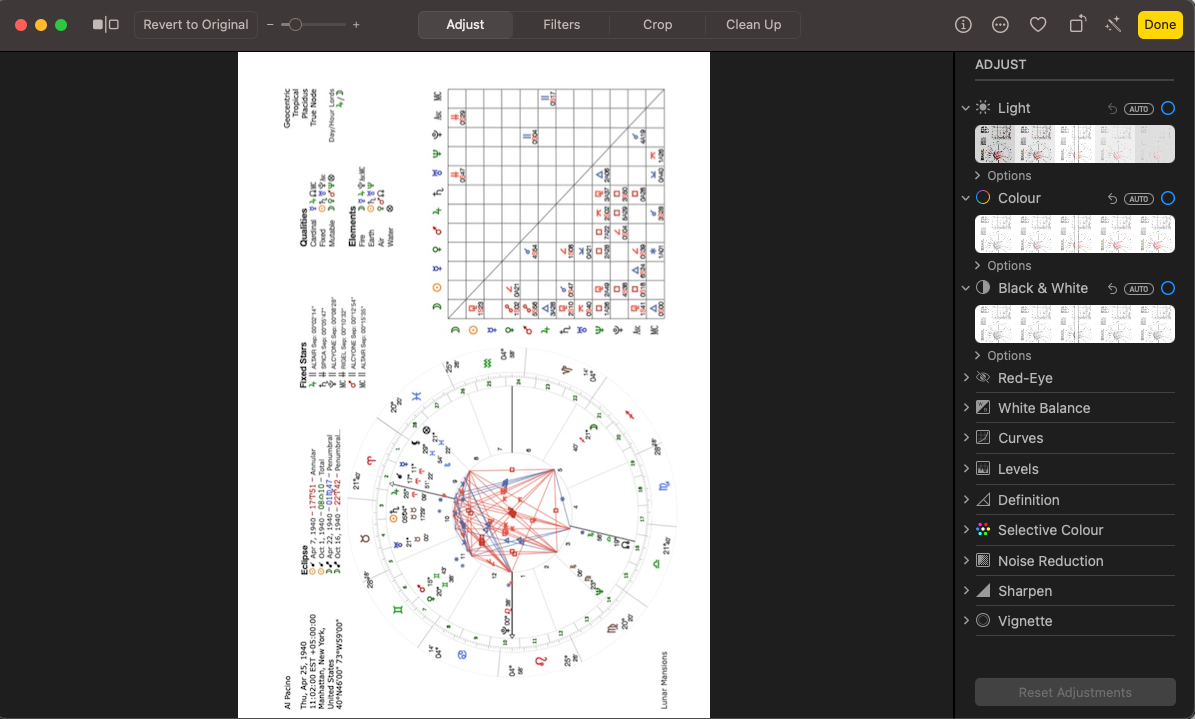
Edit in Photos
Using your iPad Your Charts database files on the Mac – if you have been using the iPad AC version and have many charts that you could like to view on your Mac.
AC on an iPad uses a SQLite database. AC on the Mac uses a separate, but identical SQLite database for its saved charts. Both have the same name. A newly installed AC for Mac has no Your Charts.
Because AC uses a SQLite database to store Your Charts (on iPad) they are not available on your Mac. Neither can you sync the two separate databases. However it’s possible to simply copy the appropriate database file(s) from your iPad to the Mac – see below.
Syncing between iPad and iPhone isn’t currently possible although I will be looking into it.
Of course it is possible to export Your Charts from AC and import them into AC on the Mac, using Dropbox. Tested – works well.
Export AC Chart records to Dropbox.
Export AC Chart recordsTransfer your iPad charts database to Mac – only do this if you’re happy and familiar with copying and overwriting files. Note that any charts you have created on the Mac will be overwritten. Please save prior to this procedure and the import them after.
1. On your iPad locate the file:
AstroConnexionsUser.sqlite3
This database file holds all your AC chart records.
Find Sqlite files2. Copy to downloads on your Mac
3. Run AC on the Mac. Go to Debug Info on the Mac AC (see screenshot below)
4. Copy path and use Finder go to the folder. (see screenshot below) – the sqlite path should look something like this:
/Users/rogerpearson/Library/Containers/81565A97-B468-4E3D-8580-4360AF4DA0DB/Data/Documents/
You could also try:
/Users/yourName/Library/Containers//Data/Documents/
Mac sqlIte path
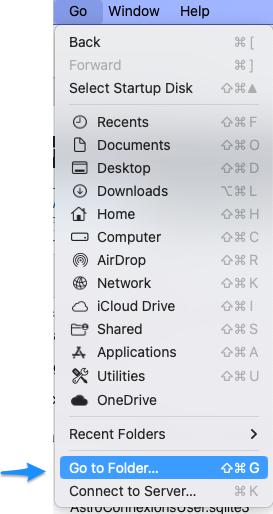
Go to folder
5. Exit AC on the Mac.
6. Paste file AstroConnexionsUser.sqlite3 from Downloads on the Mac to Sqlite folder on the Mac and overwrite (see screenshot below). Before overwriting you should save the file, just-in-case.
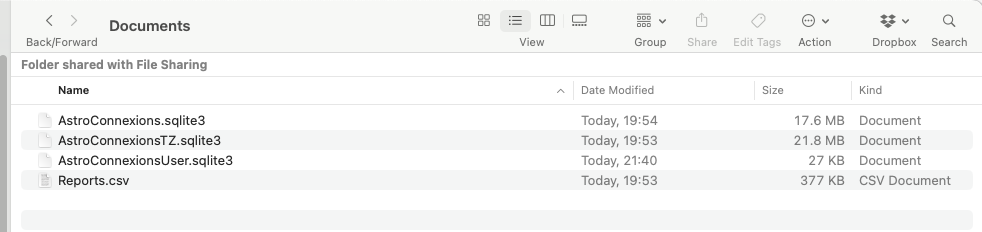
SQLite folder on the Mac
7. Done. Run AC on the Mac – all your iPad Chart files should be available.
if this results in any kind of failure you will have to re-install AC on your Mac.