

Assign Modern Interpretations to a chart
From AC ver 4.05, AC for the iPhone ver 2.01
Why is this necessary?
You may have modified or imported text into one or more of the modern Interpretations tables. These tables are provided by AC – text interpretations usually via AI. These table were initially global ie not assigned to any particular chart. To preserve your data you must assign the interpretations to a chart of your choosing. If you don’t care or haven’t modified these tables or you have just purchased AC you don’t need to do anything.
You only have to do this once.
To assign a chart:
Tap Interpretations menu item
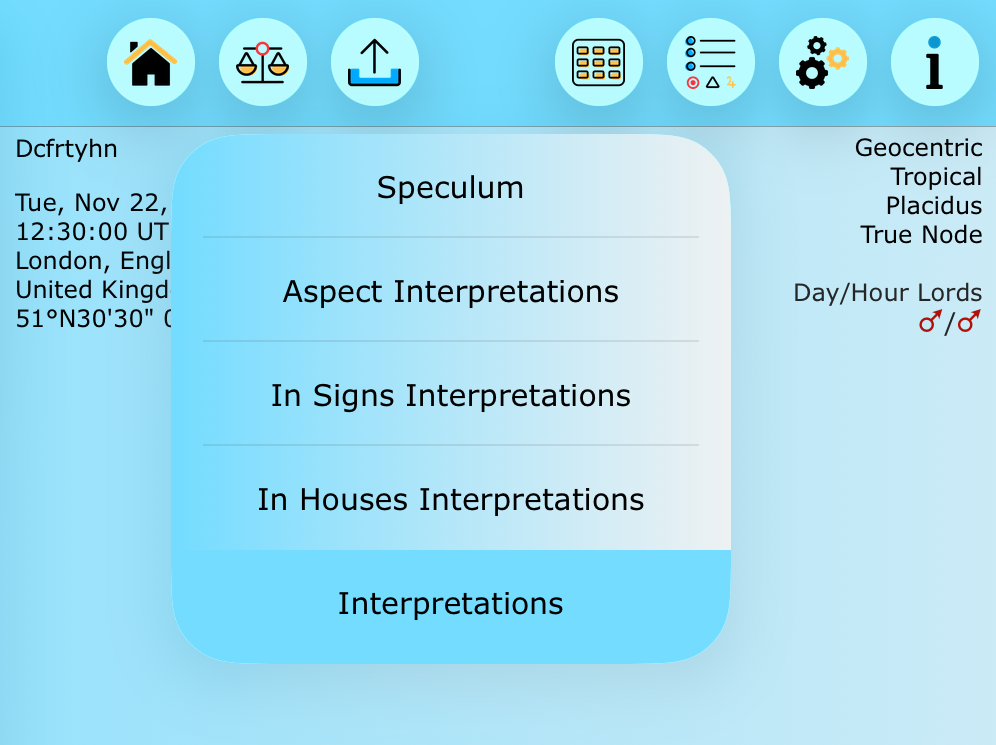
Interpretation menu
Tap a chart record
Tap a chart record to select the interpretations that will be assigned to the chart when you tap OK/Done (tick or Done at bottom left). Tap away from view to cancel before
Please note that the chart records shown are test charts for the purpose of this knowledge base article. You may see many chart records. Preferably choose a natal chart.

Tap a chart record and select
AC acknowledges that you have assigned the old interpretations to the selected chart

Assigned
Next time you tap the Interpretations menu you should see the above alert again.
Your previous old interpretations will be available when you select the chart in the usual manner.
New method of assigning Text Interpretations – example shown is 10.9″ (10th gen) iPad in portrait orientation with iOS 26+ installed.
With less than iOS 26+ installed on your iPad the screenshots will differ somewhat. But not by much.
Each of your charts can have different interpretations if the interpretations are modified for that chart.
- Every chart is assigned the provided interpretations text when loaded/shown in the main view.
- When the text is modified (or not) the text is saved to AC’s database and assigned to the chart. It is available immediately or when the chart is viewed again
Viewing the interpretation text
Via the Speculum menu – tap Aspects
Note that only the Planetary data pertaining to the chart is displayed.
You may see something like this screenshot below depending on what you may selected previously, etc.
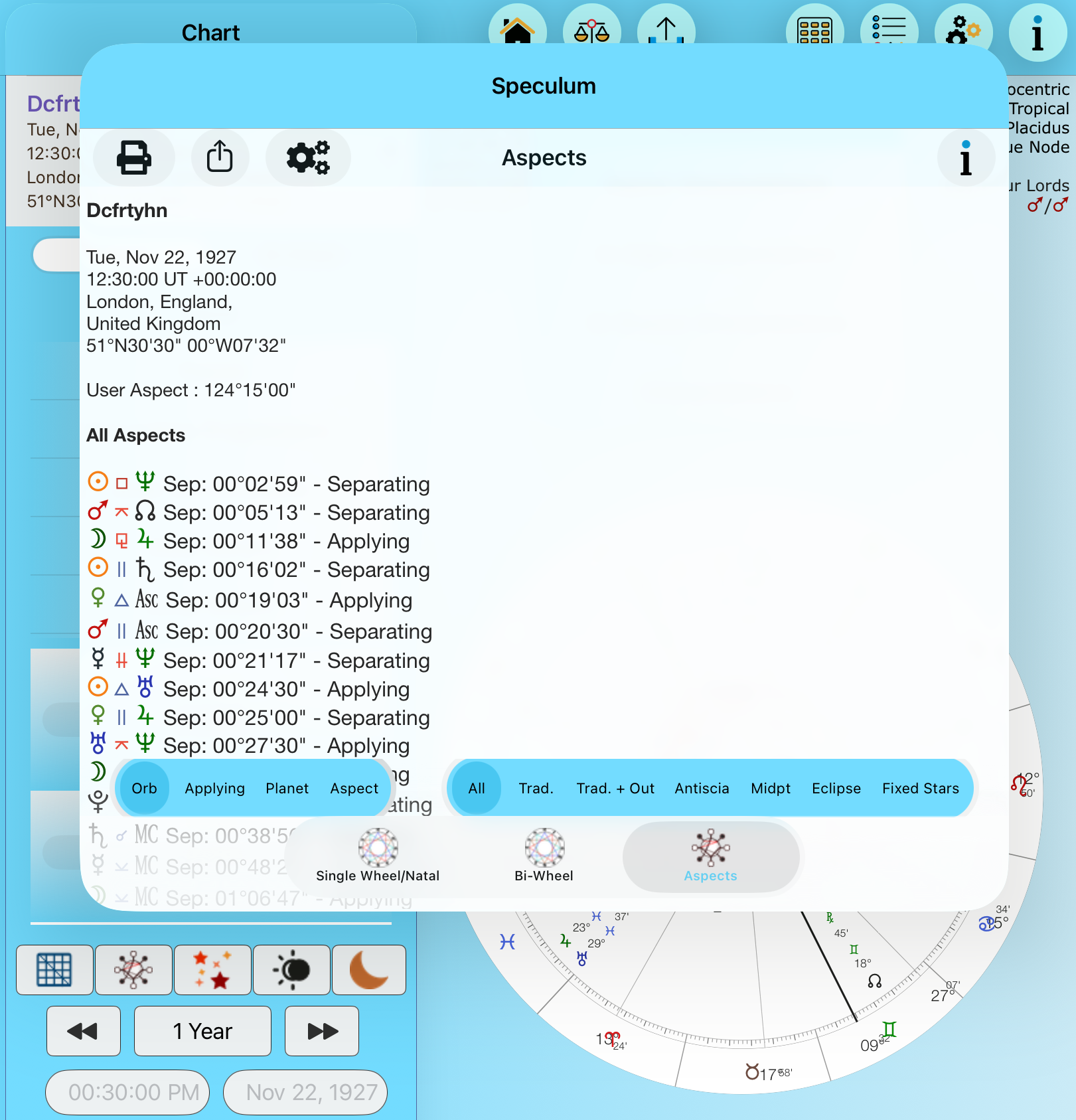
Speculum Aspects Selected
Where are the Interpretations? Tap the cog icon (3rd from left at the top) – see the screenshot above.

Selecting the Interpretations
Viewing the Interpretations – scroll for more interpretations
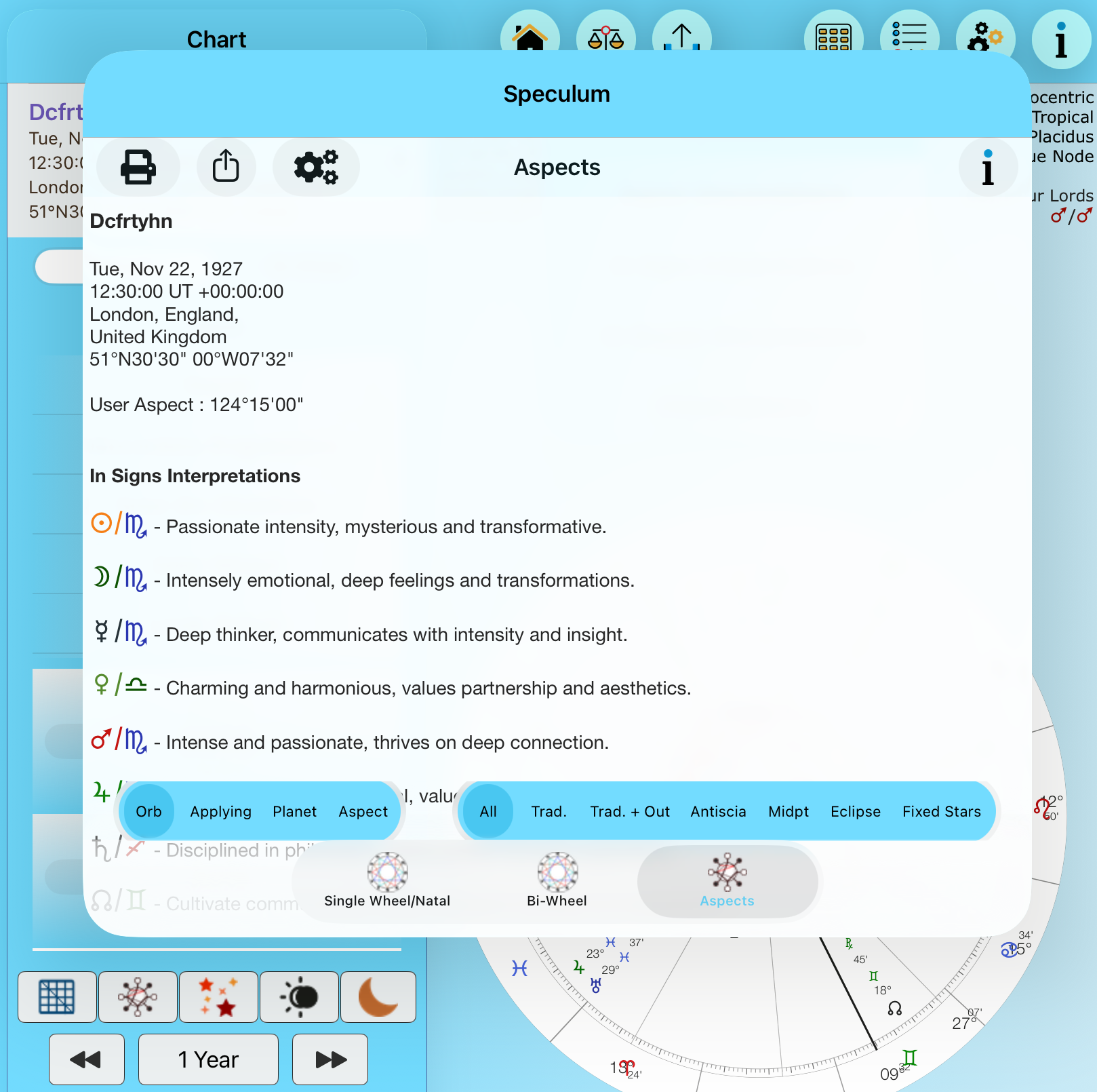
Viewing the interpretationsPrint or PDF
Print or PDF
Tap the Share icon to get a PDF file – top right.
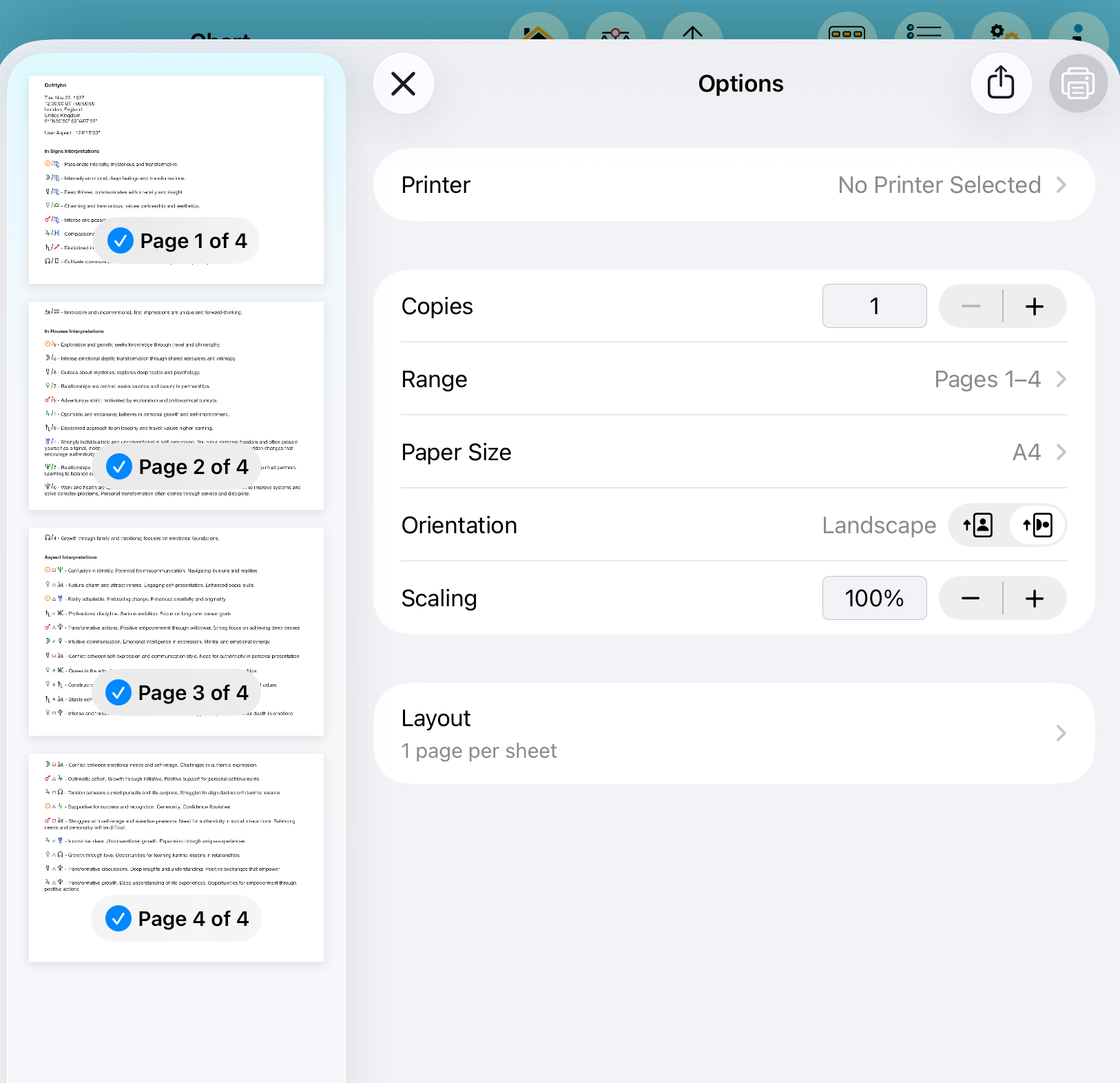
Printing or PDF
The above example assumes a natal chart.
What if the chart is a secondary progression and bi-wheel?
The outer planets are examined for their house placements and sign positions. The aspects are progressed to natal. Same principle applies to Transits, Solar Arcs and Returns.
Only the aspects can be filtered by All, Trad and Trad + Outers.
Extended Notes
Extended Notes can also see the aspect text modifications.