

Changing the Time for Transits
Animated GIF

Transit Time Adjust
A Detailed look at Transit settings
There are two ways to change a Natal chart to a Transit chart.
1.
Tap the Date button, and tap the Set button or just tap the Set button. This tells AC you want a transit chart from the Natal chart.
A Transit chart is displayed for the date and time of the natal chart. No changes to planetary positions etc are made.
Tap the Date button again and select the Date you want. Tap the Set button. For a Now date tap the Now button. Tap the Set button.
The chart will now display a Transit chart for the date selected. Changes are made to planetary positions etc.
Tap the Time button and select a time. Tap the Set button. Tap the Now button for a now time – Set button is not required. A Transit chart will be displayed for the selected Date and selected Time.
Changes are made to planetary positions etc.
2.
Quickest method. Tap the Transit record from the Chart Display table. A Transit chart is displayed for the current date. Tap the Time button and select the required time for the Transit chart. Tap the Set button. Tap the Now button for a now time – Set button is not required.
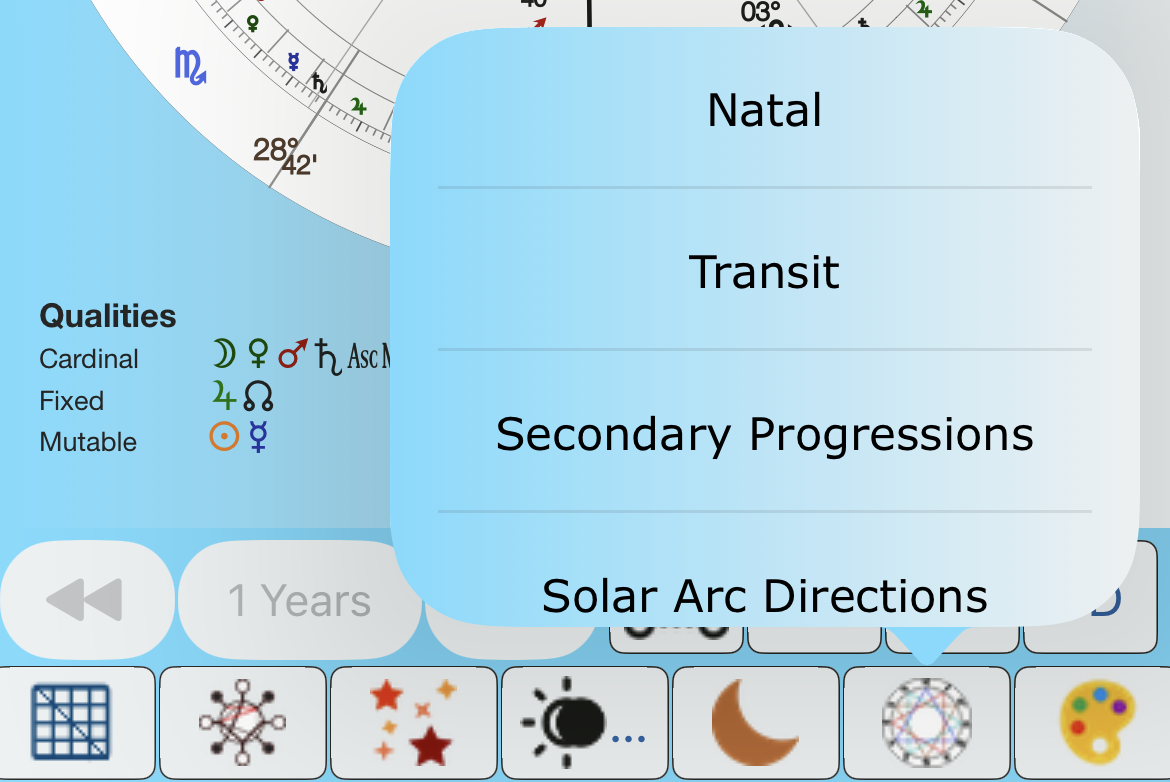
Chart Display Table – iPhone
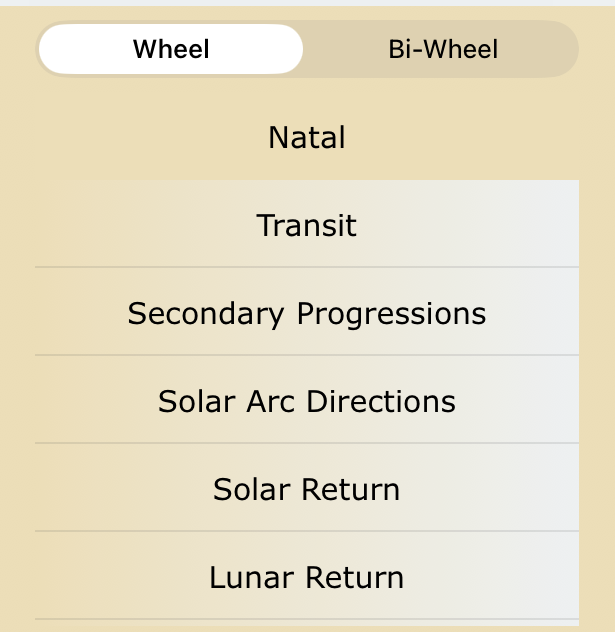
iPad table
To get a Transit bi-wheel.
Tap the Bi-Wheel button. A bi-wheel transit chart is displayed for the current date. Tap the Time button to change the time.
Note that a transit chart is displayed if Transits is selected:
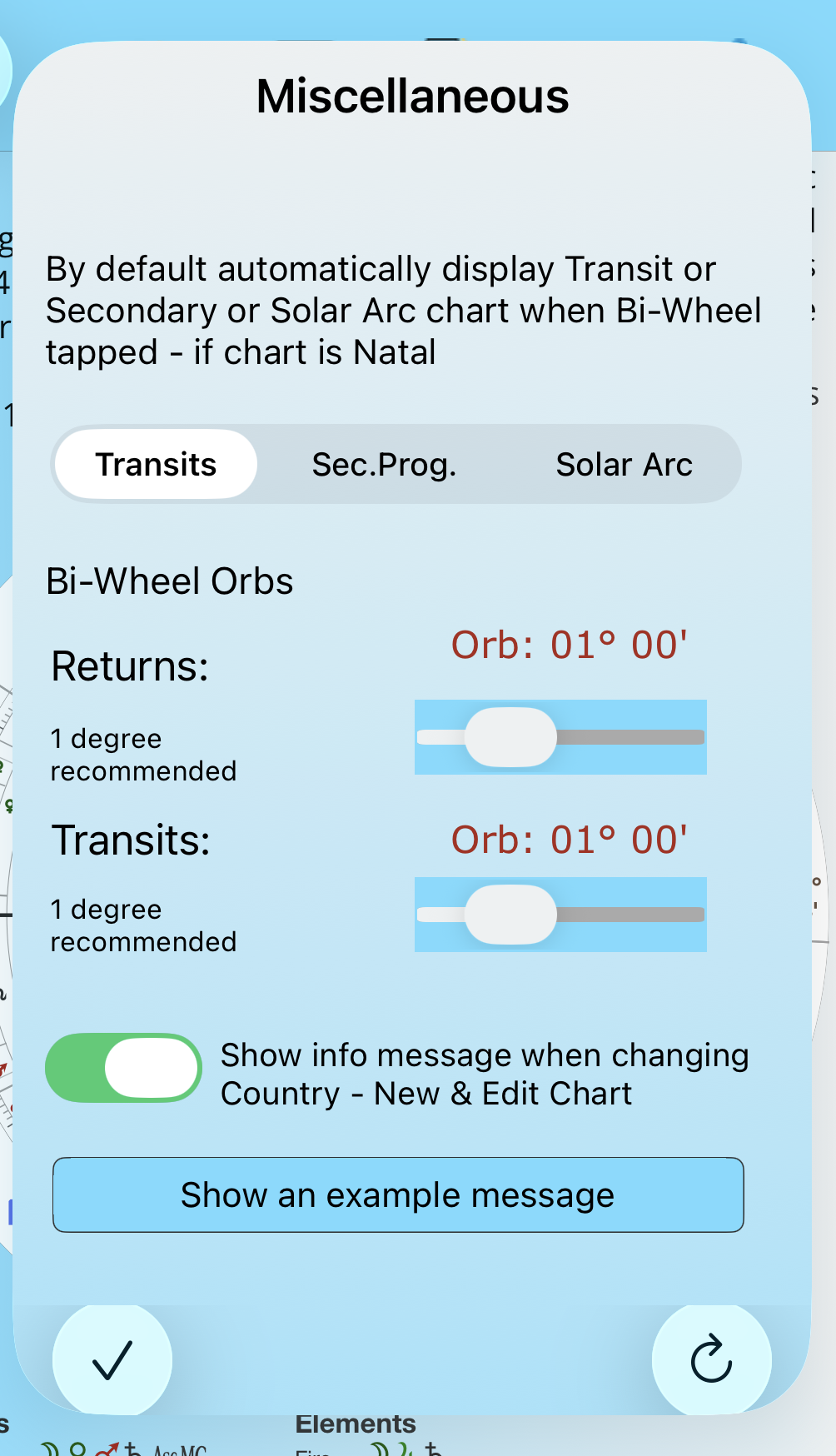
Bi-wheel Selection settings
If the above setting is not set for Transits
Tap the Transit record from the Chart Display table.